How To Reduce Heating Costs With Smart Schedules
A practical step-by-step guide to how to reduce heating costs with smart schedules, including preparation, instructions, common issues, tips, and next steps.

How To Reduce Heating Costs With Smart Schedules
Smart schedules can significantly reduce heating costs by automatically adjusting temperatures when you are away or asleep. This guide explains how to create and optimize schedules for any programmable thermostat or heating system app, without relying on specific brands. You'll learn to set back temperatures, fine-tune recovery times, and adjust habits for maximum savings while staying comfortable.
Fast Answer
- Set your thermostat to lower the temperature by 7-10°F for eight hours a day, such as while you're at work or asleep, to save up to 10% on heating costs.
- Use a smart schedule to automatically adjust the temperature based on your routine, so you don't have to remember to change it manually, and fine-tune the schedule to match your actual occupancy.
Before You Start
- Locate your thermostat's programming options or the app for your heating system, and identify the current schedule.
- Gather a week's worth of your typical daily routine, noting when you leave and return home, and when you sleep.
- Set aside 20-30 minutes to create or adjust your schedule, and have a pen and paper or a note-taking app ready to plan the times.
- Ensure you know how to temporarily override your program for occasional changes, such as weekends or days off.
Step-by-Step Instructions
Assess Your Heating System and Thermostat
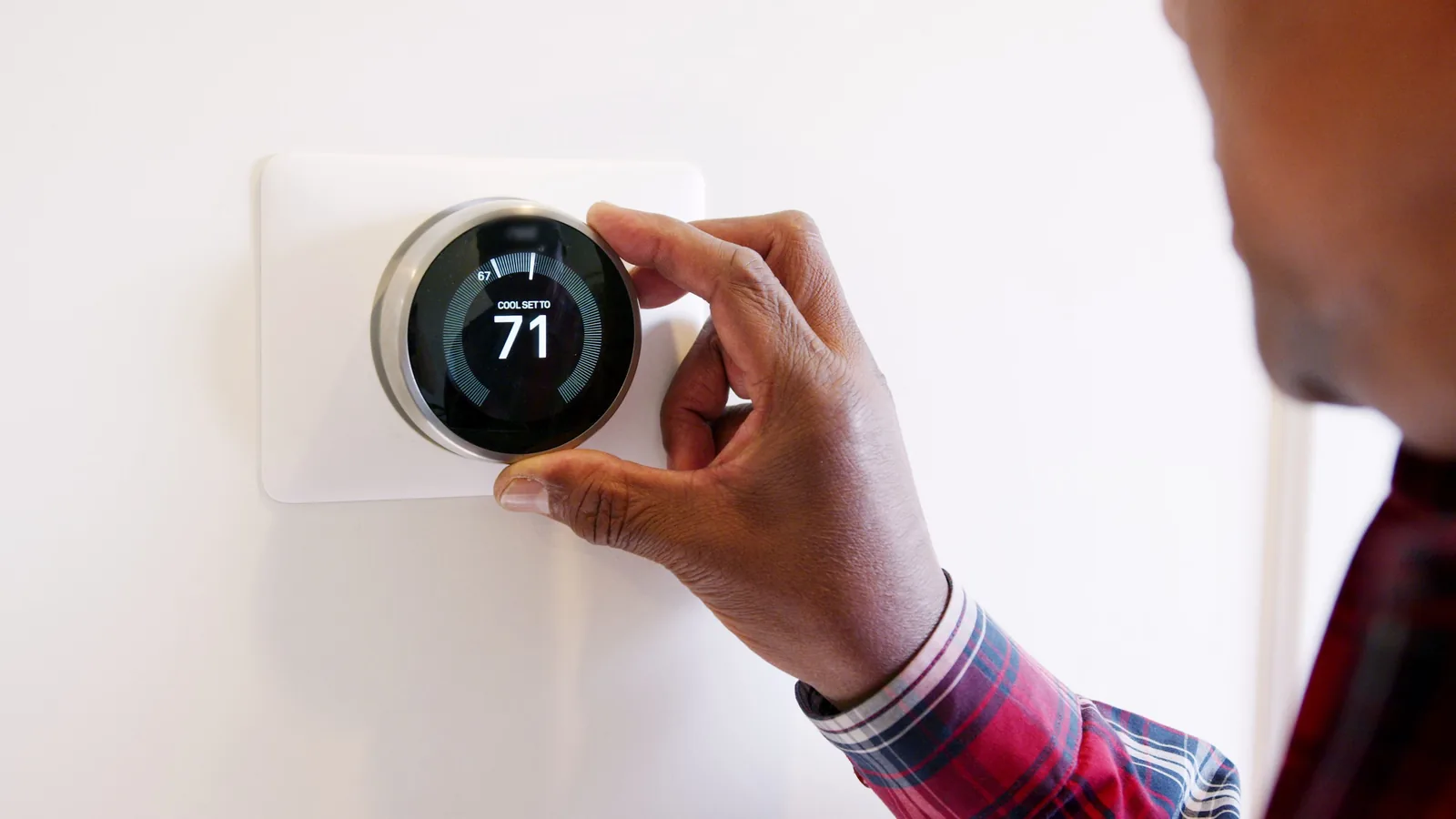
First, identify the type of heating system you have. Forced-air furnaces and boilers respond quickly to temperature changes, so you can safely set back temperatures by 8-10°F during sleep or absence. Heat pumps, however, work differently: they are most efficient when maintaining a steady temperature, and large setbacks can cause them to run on expensive auxiliary heat. Check your thermostat's manual or the app settings to see if there is a 'recovery' mode that learns how long it takes to heat your home. Also, find the current programming options; many smart thermostats have pre-set schedules you can modify. Take note of the current settings and how to navigate to the scheduling section. A practical check is to lower the temperature manually by 5°F and see how long it takes to heat back up when you raise it – this gives you an idea of recovery time. This matters because a schedule that requires a long recovery time may cost more than the savings from the setback, so you need to know your system's limits.
Map Out Your Weekly Routine
Create a detailed chart for each day of the week, marking three key periods: 'asleep', 'away', and 'at home'. For weekdays, note the time you wake up, leave for work, return home, and go to bed. Weekends may have different times, like sleeping in or going out for errands. Be realistic about variations – if you work from home certain days, include that. A sample entry for Monday might be: asleep 11pm-7am, away 8am-6pm, at home 6pm-11pm. Also consider any regular weekly events like evening classes or social engagements. Write down these times in a table or spreadsheet. A practical check is to compare your planned schedule with your phone's location history if you have it, to confirm accuracy. This matters because a schedule that doesn't match your actual presence will either waste heat when you're away or leave you cold when you're home. The more precise you are, the more savings you'll gain without sacrificing comfort.
Set Your Base Temperatures
Decide on three temperature levels: a comfort temperature for when you're home and awake (e.g., 68°F), an away temperature during the day when no one is home (e.g., 60°F), and a sleep temperature for nighttime (e.g., 62°F). These are just starting points; adjust based on personal preference and clothing. For every 8 hours you lower the temperature by 7-10°F from your normal setting, you can save up to 10% on heating costs. For reference, the U.S. Department of Energy suggests 68°F while awake and 60-62°F when asleep or away, but you should choose what feels comfortable. Enter these temperatures into your thermostat's schedule for each time block. For example, on weekdays: 7am wake to 68°F, 8am away to 60°F, 6pm home to 68°F, 11pm sleep to 62°F. Practice a check by running a few days with this schedule and noting any discomfort. This matters because overly aggressive setbacks can make the house too cold to recover quickly, causing you to override manually and lose savings.
Program the Schedule into Your Thermostat
Using the thermostat's interface or app, enter the schedule you planned. Most smart thermostats allow you to set up to four periods per day, but you can often customize more. Start by scheduling each day separately to accommodate variations. For each period, select the start time and target temperature. For example, set 'Away' at 8:00 AM to 60°F, and 'Home' at 6:00 PM to 68°F. Ensure you include a pre-heating period if your system needs time to recover – for a forced-air furnace, set the 'Home' start 30 minutes before you actually return, so the house is comfortable when you walk in. For heat pumps, set it to 'Recovery' mode if available, or allow 1-2 hours. After programming, run a 'test' by manually adjusting the temperature and observing the thermostat's response. A practical check is to see if the thermostat shows the correct next scheduled change and time. This matters because a correct schedule saves energy and prevents manual overrides, which can defeat the purpose of smart scheduling.
Utilize Learning and Geo-Fencing Features
If your thermostat has smart features, enable them to further optimize your schedule. Learning thermostats use sensors and your manual adjustments to suggest schedules, but you should still review and adjust them. Geo-fencing uses your phone's location to automatically switch to 'away' mode when you leave and back to 'home' when you return. This can be more accurate than a static schedule for irregular days. To set up geo-fencing, ensure location services are enabled for the thermostat app, and define a home boundary in the app. When you cross the boundary, the thermostat adjusts. A practical check is to walk your boundary and confirm the thermostat switches correctly. However, geo-fencing can leave the house cold if your phone battery dies, so set a backup schedule. This matters because these features can reduce energy waste without requiring constant manual updates, but they only work if properly configured and maintained.
Monitor and Fine-Tune Your Schedule
After a week of using your smart schedule, review your heating usage data in the thermostat app or energy reports. Look for patterns: does the house get too cold before your scheduled 'wake' time? Does it take too long to warm up? If so, adjust the schedule by shifting start times earlier or increasing the setback temperature slightly. Also check your energy bills or usage graphs to see if you're using less energy than before. Make small changes of 1-2°F or 15 minutes at a time to see the impact. Conduct a practical check by feeling the temperature in different rooms and asking family members for feedback. This matters because a schedule that is not comfortable will be overridden, losing all potential savings. Continuous monitoring and tweaking ensures the schedule works for your actual lifestyle, not just your initial assumptions.
Quick Reference
| Situation | Action | Why it helps |
|---|---|---|
| You leave for work every weekday at 8am and return at 6pm. | Set your thermostat to drop to 60°F at 7:30am (or just before you leave) and rise back to 68°F at 5:30pm so the house warms before you arrive. | This reduces heating during the unoccupied 8-hour block, saving around 10% on your heating bill while ensuring comfort when you walk in. |
| You wake up at 7am and feel the house is too cold until 8am. | Adjust your schedule to start heating at 6:30am instead of 7:00am, or raise the wake-up temperature by 2°F to reduce the lag. | Pre-heating the house before you get out of bed improves comfort without wasting energy because the heating system runs only for a short period before your usual wake time. |
| You have irregular days, such as working from home on Wednesdays. | Set a separate schedule for Wednesdays that keeps the temperature at your comfort level during the day, instead of using the 'away' setback. | A blanket schedule with long setbacks on days you're home would cause the heating to cycle on and off unnecessarily, increasing energy use and decreasing comfort. |
Common Issues
- The house is too cold when you wake up in the morning, even though the schedule says it should be warm.: Increase the pre-heating time before your wake-up time by 30-60 minutes, and ensure that the thermostat's 'recovery' function is enabled if available. Also check that the batteries are not low, as a weak battery might disable programming.
- The thermostat resets its schedule after a power outage or when you change the time.: Replace the batteries if your thermostat uses them, and re-program the schedule. To prevent future resets, consider a thermostat with a battery backup or a wired connection for power. Also, check if the 'time and date' are correct, as an incorrect time can shift scheduling.
- The thermostat shows 'away' mode but you are actually at home, cooling the house unnecessarily.: Disable geo-fencing or adjust the location boundary radius. Also, turn off any learning features that might override your schedule, and manually set the schedule back to 'home' mode. Ensure that your phone's location is accurate in the app.
Advanced Tips
- Use advanced settings like 'adaptive recovery' to let your thermostat learn how long it takes to heat your home, so it can start warming earlier and avoid overshooting.
- Consider installing smart vents or zone controls to direct heat to the rooms you use most, while reducing heating in seldom-used areas.
- Adjust your schedule seasonally: as weather changes, your home's heat loss changes, so update setback temperatures and pre-heating times accordingly.
Final Checklist
- Verify that your schedule is set for all seven days, including weekends, and reflects your actual routine.
- Check that the thermostat's time and date are correct, and that the program is set to 'run schedule' rather than 'hold'.
- Review your energy usage after one week to see if there's a noticeable decrease in heating degree days or fuel consumption.
- Ensure that your system's filter is clean and that radiators or vents are unblocked, so your heating runs efficiently.
FAQ
How much money can I actually save by using a smart schedule?
The amount you save depends on your climate, your home's insulation, and your current heating habits. As a general rule, you can save about 1% for each degree you lower the thermostat for 8 hours. So if you set back from 68°F to 60°F for 8 hours a day, you could save up to 8% on your heating bill. But actual savings vary; check your energy bills month-to-month to see the difference.
Will a smart schedule damage my heating system?
No, modern heating systems are designed to cycle on and off, and smart schedules simply mimic what you would do manually. The only caveat is with heat pumps, where rapid temperature swings can cause the auxiliary heat to run more often, increasing energy use and wear. For heat pumps, keep setbacks modest (less than 10°F) and use 'recovery' features to moderate the temperature climb.
What temperature should I set for sleeping and when I'm away?
The ideal setback temperature depends on your comfort and insulation, but a common recommendation is to lower the temperature to 60-62°F when asleep or away, and keep it around 68°F when awake at home. If you have pets or vulnerable people, adjust accordingly. Critically, avoid going below 50°F to prevent pipes from freezing.