How To Create A Heat Pump Schedule
A practical step-by-step guide to how to create a heat pump schedule, including preparation, instructions, common issues, tips, and next steps.
How To Create A Heat Pump Schedule
Creating a heat pump schedule helps you save energy, reduce costs, and keep your home comfortable by aligning heating and cooling with your daily routines. This guide walks you through understanding your thermostat settings, mapping your weekly activities, programming temperature setbacks, and testing your schedule. You'll learn how to adjust for weekends, handle unexpected changes, and use advanced features like geofencing and smart home integration. By following these steps, you can optimize your heat pump's performance, avoid common pitfalls, and maintain a comfortable living environment year-round.
Fast Answer
- Set a consistent nightly setback of 5-8°F (2-4°C) for 6-8 hours, and use a 2-3°F setback during work hours to save without stressing the system.
- Program a pre-set recovery period of 30-60 minutes before waking or returning home so the heat pump ramps up gently, avoiding a cold shock.
Before You Start
- Identify your thermostat type: Check if it's a basic manual model, a programmable one, or a smart thermostat that connects to Wi-Fi, as this determines how you set schedules.
- Review your typical weekly pattern, noting when you wake, leave for work or school, return, and go to bed on weekdays and weekends, including any regular evening activities.
- Decide on target temperatures for sleeping, active times, and away periods: Common ranges are 60-65°F for sleep, 68-72°F for active, and 60-64°F for away, but adjust for comfort.
- Consult your heat pump owner's manual or provider's app for specific scheduling instructions, including whether it uses a 5-2, 5-1-1, or 7-day programming pattern.
Step-by-Step Instructions
Access Thermostat Schedule Settings
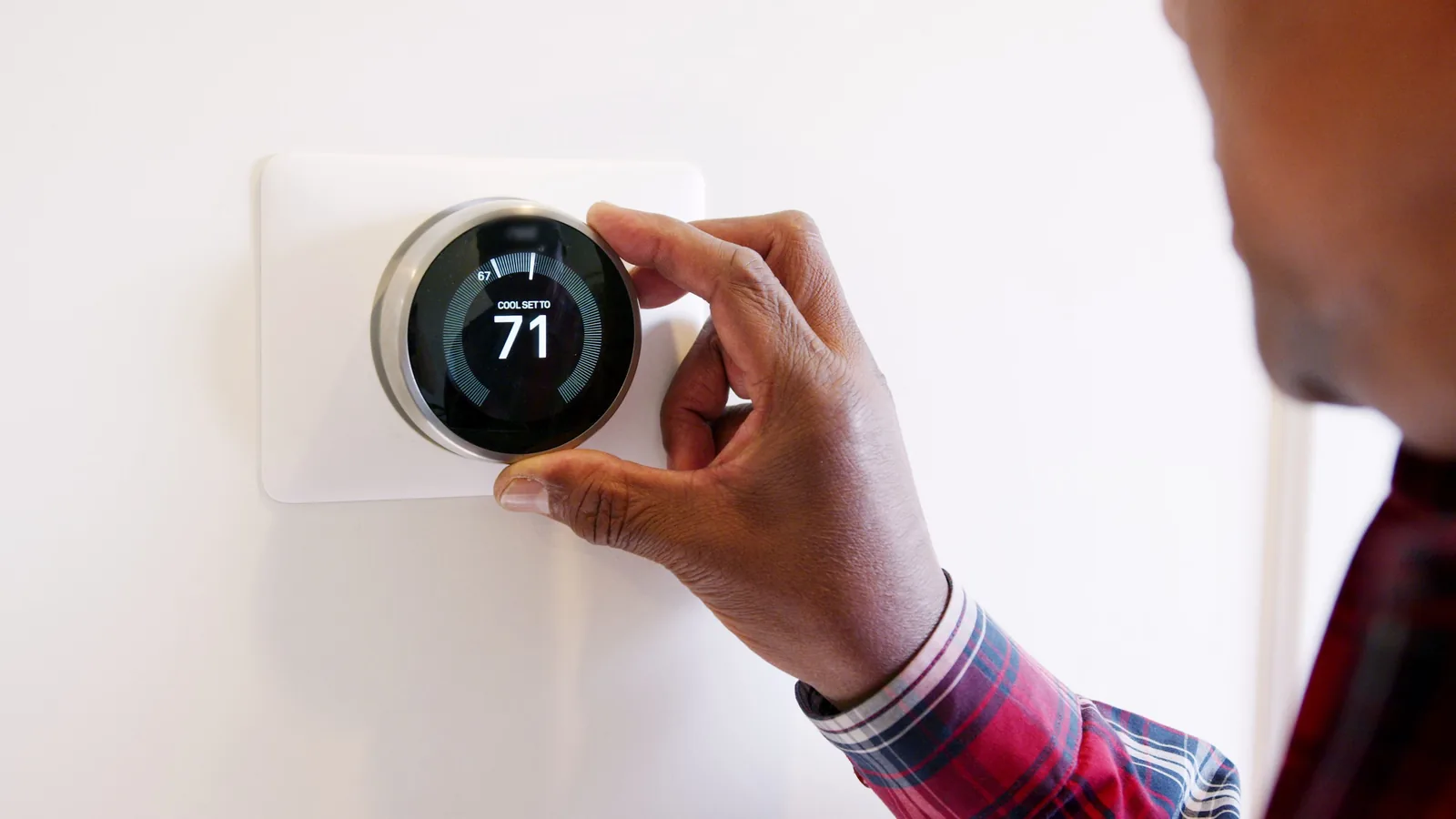
First, locate the scheduling menu on your thermostat. On a programmable model, you'll typically press a 'Schedule' or 'Program' button, while on a smart thermostat, open the app and navigate to the settings icon. Look for options labeled 'Schedule', 'Comfort', or 'Routines'. When you find the menu, note the available time periods, often four per day: wake, leave, return, and sleep. If you have a 5-2 or 5-1-1 system, see which days are grouped and which are separate. Your goal is to access the grid where you can set time and temperature for each period. If you can't find the schedule, check the display for an icon showing a clock or calendar. Also, some thermostats require you to unlock a 'hold' feature that cancels scheduling, so ensure you're in 'Run Schedule' mode. Practical check: After entering the menu, try to see today's date and current setpoint; if you can change it, you're in the right place. This step matters because correctly locating the scheduling interface is the foundation for all other adjustments, and it prevents you from accidentally changing only the temporary override.
Map Out Your Weekly Routine
Create a simple chart of a typical week, listing each day and the time you usually wake up, leave the house, return, and go to bed. For example, weekdays might have wake at 7am, leave at 8:30am, return at 5:30pm, and sleep at 11:30pm, while weekends differ. Be realistic about your habits; if you work from home, treat days like weekends. If you have irregular shifts, identify patterns, like always away on certain afternoons. Also, note times when certain rooms are unoccupied or when you typically exercise and might prefer cooler temps. This map is the blueprint for your schedule, because it tells you when to save energy without sacrificing comfort. Practical check: For each day, write the four time periods with a target temperature range you're comfortable with, and verify they align with your actual wake and sleep times rather than an idealistic vision. This step matters because an accurate routine prevents the common mistake of programming a schedule that fights your real life, leading to manual overrides and wasted energy.
Set Weekday Schedule Periods
Begin with Monday through Friday, and input the times and temperatures for each period. For wake, set the system to a comfortable temperature, say 70°F, about 30 minutes before you get up, so the house is warm. For leave, set a setback to around 64°F, and schedule it at the time you actually walk out the door or slightly before. For return, set the recovery temperature (68-72°F) about 30-60 minutes before you arrive home, depending on how long the system typically needs. For sleep, set a night setback to 62-65°F, starting at your bedtime. If your thermostat permits, choose 'Comfort' for day, 'Eco' for away, and 'Sleep'. Be precise with times to the nearest 5 minutes. Practical check: After entering, manually review each period to ensure temperatures are within recommended ranges and recovery times are realistic. This step matters because the weekday schedule is what you'll use most, and even small errors in timing can lead to either a cold morning or needless heating while you're out, undermining your efficiency goals.
Configure Weekend and Weekend Variant
Now, handle Saturday and Sunday. Many thermostats use a 5-1-1 pattern, meaning weekdays, Saturday, and Sunday have separate schedules. If you often stay home on weekends but might go out on Saturday afternoon, set Saturday to mimic your weekday away times only if needed; otherwise, keep consistent comfort temperatures. On Sunday, you might want a shorter sleep time but a later wake. For example, set wake at 7:30am, leave at 10am (only if you go to church or errands), return at 2pm, and sleep at 1am. Alternatively, set a single 'weekend' schedule with two periods: daytime comfort and night setback, only if you're mostly home. If your thermostat uses a 7-day mode, program each day individually. Practical check: Ensure that the weekend schedule does not have a wake time earlier than you actually get up, or you'll waste heat. Also, if you leave home for several hours on weekends, program a temporary temperature reduction for that period. This step matters because weekends often involve irregular patterns, and without a proper schedule, you might end up heating an empty house or coming home to a cold one.
Test and Fine-Tune the Schedule
After programming, run your schedule for a few days and note how it feels. On the first day, watch the system's recovery: does it reach the target temperature at the right time? If not, adjust the start time of the wake or return period earlier or later by 15 minutes. Also, listen for short cycling, which is when the compressor starts and stops frequently; this can happen if the temperature swings are too large. A heat pump typically works slowly, so expect a gradual temperature change. Use the thermostat's 'hold' gently if you need to override temporarily, but avoid using it constantly. If you notice a room is too cold or hot, consider adjusting the air vents or using a separate schedule for that zone if your system supports it. Practical check: At the end of the test period, review your energy bill or usage data in the thermostat app to see if consumption has decreased. This step matters because programming a schedule is not about setting and forgetting; it's a living plan that needs calibration based on real performance, ensuring you actually achieve comfort and savings.
Implement Advanced Features and Routines
Once your base schedule works, explore advanced features to enhance efficiency. If your thermostat supports geofencing, set up your phone's location to adjust the temperature when you're away or near home automatically, which can override the schedule as needed. Consider using an 'adaptive recovery' mode, if available, which learns how long your heat pump needs to reach the target temperature and starts earlier on colder days. Also, use humidity settings to keep your home comfortable while reducing energy use, since heat pumps dehumidify as they cool. For weekends, set a 'guest' routine if you often have visitors. Additionally, many systems allow integration with smart home assistants, so you can use voice commands to adjust the schedule. Practical check: Enable a test of geofencing and verify that your thermostat receives the signal from your phone's location; then set a temporary override to ensure it works. This step matters because these advanced settings can automate your schedule further, preventing energy waste and adding convenience, but they must be configured correctly to avoid conflicts.
Quick Reference
| Situation | Action | Why it helps |
|---|---|---|
| You're going on vacation for a week and want to save energy. | Use the 'vacation' or 'hold' feature on your thermostat to set a constant temperature of around 60°F (15°C) for the duration, ensuring you turn it off or set it to 'vacation' mode after activating. | A fixed lower temperature prevents the heat pump from cycling unnecessarily while you're gone, and the minimum protects pipes from freezing. |
| Your evening routine changes frequently, and you don't want to reprogram. | Temporarily use the 'hold' button to set a comfortable temperature, and then remember to return to 'run schedule' mode after the exception is over. | A hold overrides the schedule just for that period, but if you forget to cancel it, you'll end up running constant temperatures and losing savings. |
| You come home earlier than scheduled and the house is cold. | Manually raise the thermostat setpoint to your desired comfort level, but only until the schedule's return period begins, then let the schedule resume; use a 1-2 degree adjustment if possible. | This temporary boost still allows the schedule to take over, avoiding a long-term override that would waste energy, and your heat pump will recover more efficiently. |
Common Issues
- The schedule doesn't seem to follow the programmed times on some days.: Check if the thermostat's clock is correct and set to the right timezone; also ensure that the day-of-the-week assignment matches your programming (e.g., Monday is day 1). Reset the clock and reprogram if necessary.
- The house feels too cold in the morning even though the schedule says it should be comfortable.: Increase the recovery time before your wake period by moving the start time 15-30 minutes earlier. Also, ensure that the 'sleep' temperature is not too low, and consider adding a small pre-warm period of 1-2°F.
- Your heat pump runs constantly, and the schedule seems ignored.: Look for a 'hold' or 'override' indicator on the thermostat; if it's active, cancel it to let the schedule resume. Also, check if the system is in emergency heat mode, which overrides schedules, and reset it if needed.
Advanced Tips
- Use night setback only if you have good insulation; otherwise, the heat pump might run longer to recover, using more energy than it saves.
- Set a 'fan on' option to circulate air continuously for 10-15 minutes per hour to equalize temperatures between rooms, making your schedule more effective.
- If you have a smart thermostat, use AI-driven features like 'learning' mode, which automatically creates a schedule based on your habits; however, still review and adjust it for seasonal changes.
Final Checklist
- Verify that your thermostat is in 'schedule' mode, not 'hold' or 'temporary', so it follows your programmed times.
- Double-check that the start times for your pre-conditioning periods are realistic, allowing at least 30 minutes for recovery.
- Ensure that all setback temperatures are within safe limits, no lower than 60°F (15°C) and no higher than 75°F (24°C) for cooling.
- After a week, review your energy usage and comfort notes to make any necessary adjustments to your schedule.
FAQ
Why should I use setbacks with a heat pump if it uses more energy to recover?
Heat pumps are most efficient when maintaining steady temperatures, but that doesn't mean you can't use setbacks. A moderate setback of 5-8°F for 6-8 hours saves up to 10% on heating costs, even with recovery. The system doesn't work as hard as you'd think because it operates with a compressor, not resistive heaters, and recovery is gradual. Just avoid extreme setbacks of more than 10°F or frequent changes.
How often should I update my heat pump schedule?
Update your schedule when your routine changes, such as with a new job, school break, or if you start working from home. Also, adjust it seasonally because your comfort needs differ in summer and winter. Many smart thermostats learn and adjust, but you should review your schedule every few months to ensure it still matches your life.
Can I override my schedule manually without affecting the rest of the week?
Yes, most thermostats have a 'temporary hold' that lasts until the next scheduled period. For example, if you set a temporary temperature, it will last until the next programmed transition. This is useful for unexpected changes. If you use a permanent hold, it overrides the schedule indefinitely until you cancel it, so avoid that for daily use.